Skip to guide content

Domain Setup

Connecting your subdomain

You can connect a subdomain such as blog.example.com to BlogMaker without moving your domain to Cloudflare. Subdomains use a standard CNAME record at Namecheap, GoDaddy, Cloudflare, and nearly every other DNS provider.

1. Add the subdomain in BlogMaker

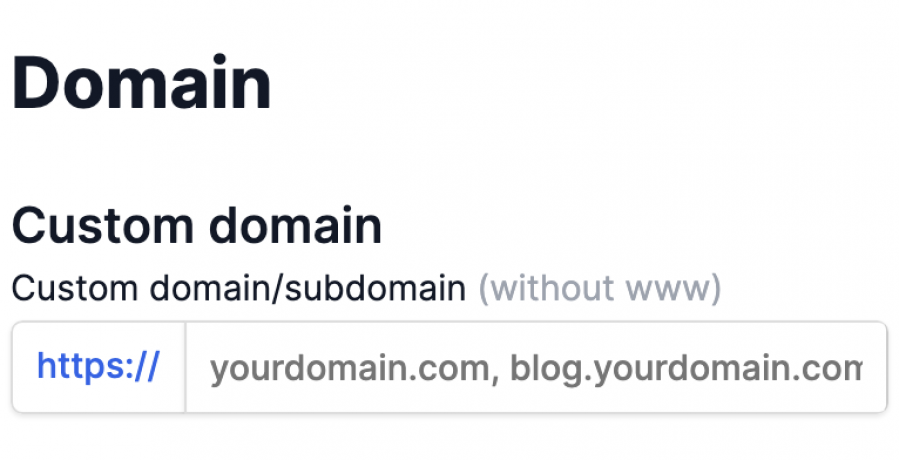
Open Settings > Domain > Your custom domain or subdomain.

Enter the complete subdomain without https://, a path, or a trailing slash. For example:

blog.example.com

Save it before changing DNS so BlogMaker can prepare routing and SSL.

2. Add the CNAME record

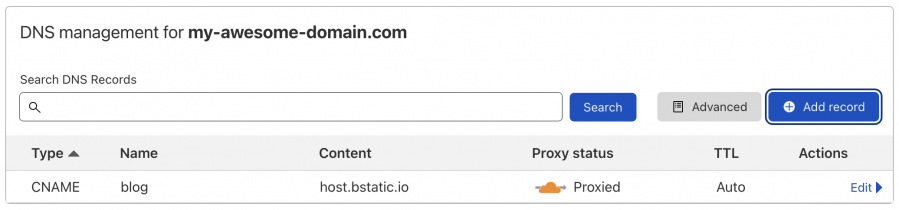
Create this record wherever your domain's active DNS is managed:

  • Type: CNAME
  • Host or Name: blog
  • Target, Value, or Points to: host.bstatic.io
  • TTL: Automatic or the provider default

Replace blog with the subdomain you entered in BlogMaker. For news.example.com, use news as the host.

Remove an existing A, AAAA, CNAME, parking, or forwarding record for that exact subdomain if it conflicts. Do not remove unrelated MX or TXT records.

Provider-specific navigation

Namecheap

Open Domain List > Manage > Advanced DNS > Host Records, then add a CNAME with Host blog and Value host.bstatic.io. See Namecheap's CNAME instructions.

GoDaddy

Open Domain Portfolio, select the domain, choose DNS, and add a CNAME with Name blog and Value host.bstatic.io. See GoDaddy's CNAME instructions.

Cloudflare

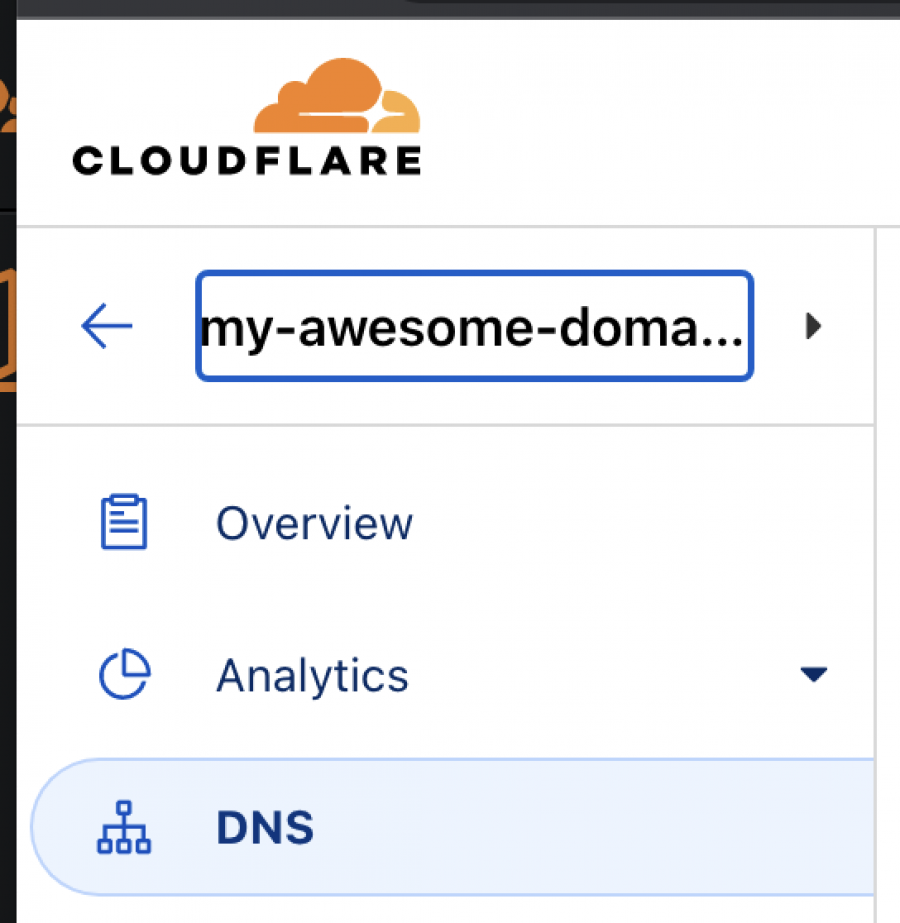
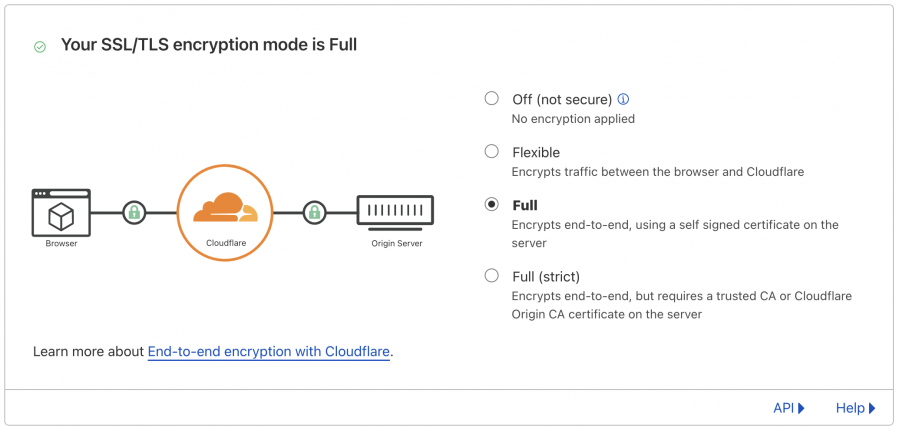
Open DNS and add a CNAME with Name blog and Target host.bstatic.io. The Cloudflare proxy may be on. If it is on, set SSL/TLS > Overview to Full.

Other DNS providers

Find the DNS, DNS Zone, Zone Editor, or Host Records screen and add the same CNAME. If the DNS controls are unavailable, check which nameservers the domain uses and edit the record with that provider instead.

Wait for DNS and SSL

DNS updates often appear within a few minutes, but some providers may take up to 48 hours to update globally. BlogMaker provisions SSL automatically after the CNAME reaches our proxy.

Troubleshooting checklist

  • Enter only the subdomain label, such as blog, in the DNS Host or Name field unless your provider explicitly requests the full hostname.
  • Do not put https:// or a path in a CNAME value.
  • Remove any conflicting record for the same subdomain.
  • If DNS is correct but HTTPS still fails, contact BlogMaker Support with the exact subdomain so we can check routing and SSL status.

Ready to publish?

Start a professional blog without managing plugins, hosting, or maintenance.

Create Your Blog Today